
Download Metatrader 4
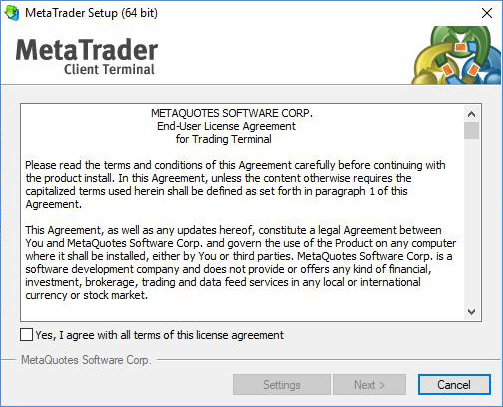
First you need to download the installation of Metatrader 4 files for desktop PC. Or visit our MT4 platform page. Once you downloaded, You may run the MT4 setup file, a MetaTrader 4 Setup window will appear. As per the picture.

Please read the license agreement
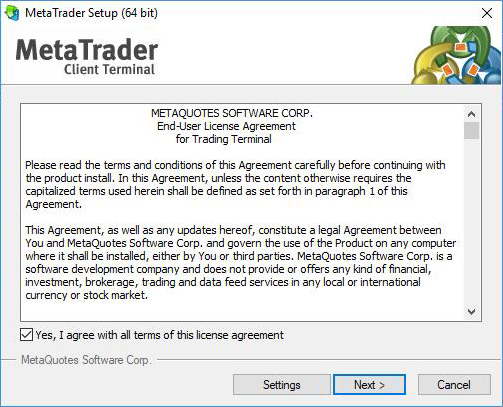
Carefully read and accept the Metatrader 4 License Agreement before you proceed with the installation, once you finished please ‘tick’ the ‘box’ and click “next” to proceed.

Installing Metatrader 4
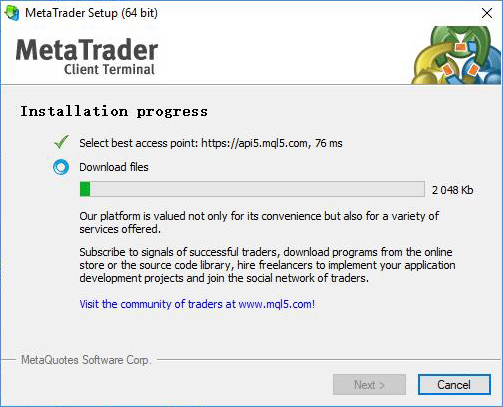
Progress of installation will be shown as in picture, Please wait patiently for the installation to complete.
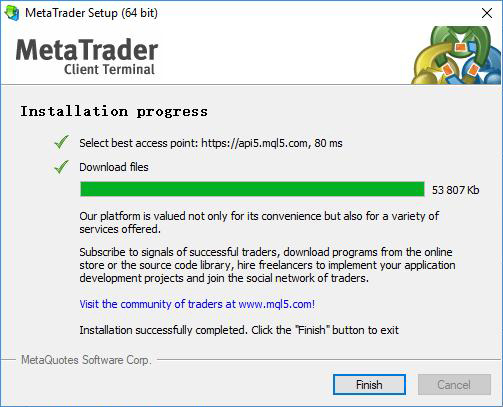

Installing Metatrader 4
Once the installation is successfully completed as shown in Figure 3, click the Finish button to launch the Indosukses MT4 trading platform.

Running the MT4 terminal
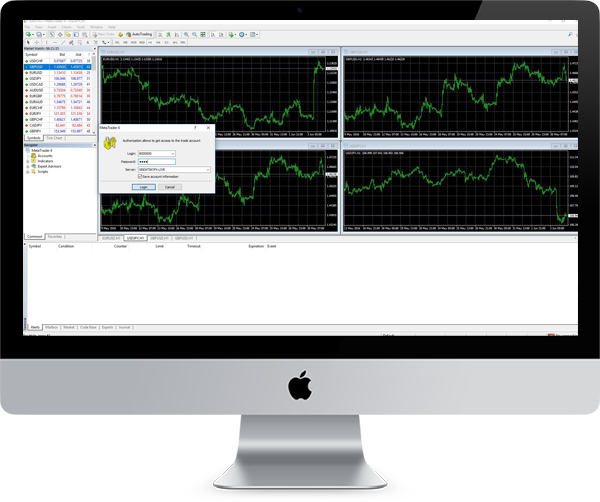
Following successful installation, MT4 will launch as shown in the picture with its default parameters. You may login using the details sent to you via e-mail for logging into your MT4 platform.
Getting the MT4 for Android
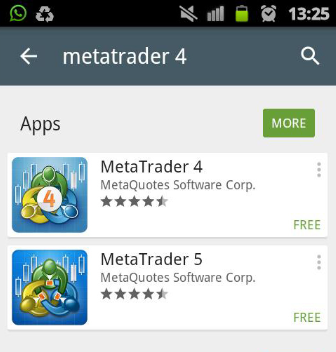
The MetaTrader 4 app is available in Google Play Store. To install it, enter MetaTrader 4 in the search bar and select the MetaTrader 4 app from MetaQuotes Software Corporation from the search results. Alternatively if you do not have access to Google Play Store, you may need to download the apk file from this link.
Installing MT4
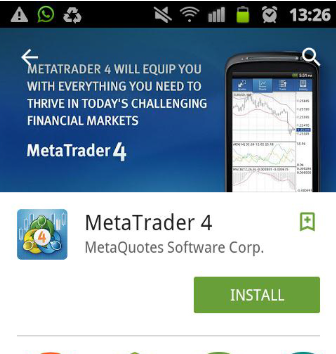
Install the app by tapping Install on the app's page in Google Play. Or run directly form the apk file you had downloaded.
Open the Metatrader 4 App
Once you had installed the MT4 app you shall see the MT4 app icon as per the picture on your phone, touch to launch the app.
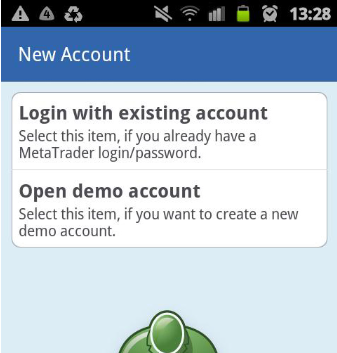
Choose login
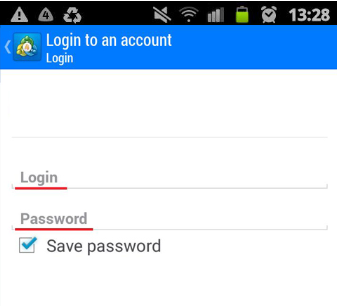
On server search field, type Indosukses, it should show Indosukses Server. Choose live server to login into your account using your Indosukses live account credential you received from your email when you create your MT4.
Login in to your account
On server search field, type Indosukses, it should show Indosukses Server. Choose live server to login into your account using your Indosukses live account credential you received from your email when you create your MT4.
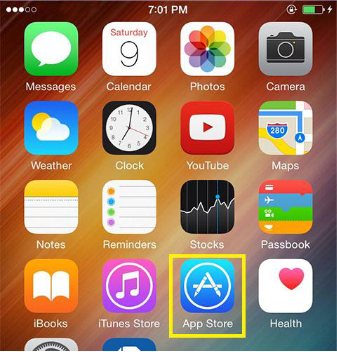
Go to App Store
Touch to open App Store on your iPhone.
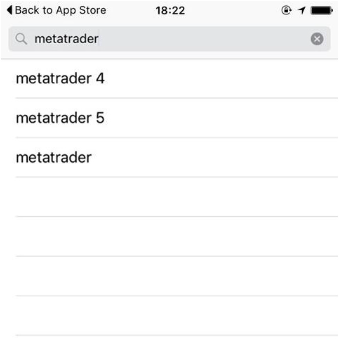
Search for Metatrader 4
Type Metatrader 4 on App Store search bar to seach it.
Find Metatrader 4
Choose the Matatrader 4, make sure it is from MetaQuotes Software Corp.
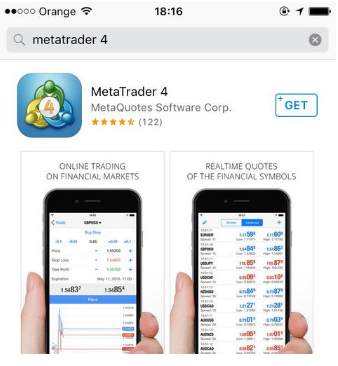
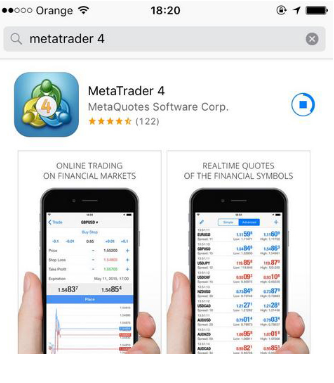
Installing Metatrader 4
Touch “get” to stat installing the Metatrader 4, you may prompt to input your apple app store account and password.
Login to your MT4 live account
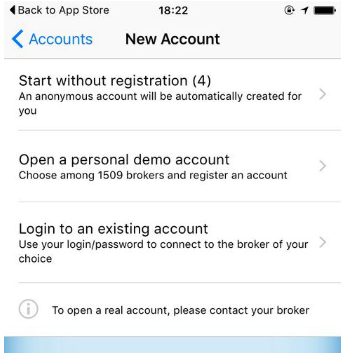
Once you had completed your installation, proceed to run the Metatrader 4 app, you will prompt to login page, proceed to choose “login to an existing account”, choose your broker and proceed to login to your live account.